Manually creating invoices for every client can drain valuable hours and lead to costly mistakes. Freelancers and small business owners know how repetitive billing tasks stall cash flow and overwhelm daily operations. With efficient bulk invoicing solutions, you can transform a messy workflow into a streamlined, organized system that saves time and improves accuracy. This guide breaks down each step of using BatchInvoice, making it easy to automate and refine your financial process from day one.
Table of Contents
- Step 1: Set Up BatchInvoice For Bulk Invoicing
- Step 2: Import Invoice Data From Notes Or Spreadsheets
- Step 3: Generate Professional PDF Invoices Automatically
- Step 4: Integrate With Accounting Platforms Securely
- Step 5: Review And Verify Invoice Batches Before Sending
Quick Summary
| Key Insight | Explanation |
|---|---|
| 1. Optimize Initial Setup | Properly configure BatchInvoice to maximize efficiency and reduce invoice processing time significantly. |
| 2. Efficient Data Import | Importing data from notes or spreadsheets minimizes manual entry errors and dramatically saves time. |
| 3. Automate PDF Generation | Automatically create professional PDF invoices to streamline document preparation and improve accuracy. |
| 4. Secure Accounting Integration | Connect with accounting platforms to ensure seamless data synchronization while maintaining high data security. |
| 5. Thorough Verification Process | Review batch invoices carefully to prevent errors, ensuring smooth transactions and consistent professional standards. |
Step 1: Set up BatchInvoice for bulk invoicing
Setting up BatchInvoice for bulk invoicing streamlines your financial workflow, allowing you to generate multiple invoices quickly and professionally. The process is straightforward and designed to save small business owners and freelancers significant administrative time.
To begin, navigate to the BatchInvoice platform and create your account. You’ll want to have your business information, client details, and basic pricing structures ready. The setup process involves several key steps:
- Connect your existing accounting platforms
- Import your client database
- Configure default invoice templates
- Set up automated billing rules
The initial configuration is critical for maximizing efficiency. Federal invoicing guidelines recommend carefully mapping out your transaction workflows before implementation. This means taking time to standardize how you’ll handle recurring invoices, track payments, and manage client-specific billing requirements.
After completing your basic setup, test the bulk invoicing feature with a small batch of sample invoices. This allows you to verify that all details transfer correctly and that your templates look professional. BatchInvoice provides preview options to help you fine-tune your documents before sending them to clients.
Accurate initial configuration can reduce invoice processing time by up to 90%, transforming your financial management approach.
Pro tip: Keep your client contact information updated and use BatchInvoice’s autofill features to minimize manual data entry in future invoicing cycles.
Step 2: Import invoice data from notes or spreadsheets
Streamlining your invoicing workflow means efficiently transferring your existing invoice data into BatchInvoice. This step eliminates manual data entry and reduces potential errors by leveraging the platform’s advanced import capabilities. Whether you’re working with text notes, Excel spreadsheets, or CSV files, BatchInvoice supports multiple data import methods.
Start by preparing your source documents. Ensure your spreadsheets have consistent columns for critical information like client names, invoice numbers, dates, and total amounts. BatchInvoice supports invoice data import techniques that allow quick transfers from various file formats. The key steps include:
- Standardize your spreadsheet column headers
- Remove any unnecessary formatting
- Verify data accuracy before uploading
- Select the appropriate import mapping option
To import your data, click on the “Import” button in the BatchInvoice dashboard. Choose your file type and follow the guided mapping process. The platform will help you match your spreadsheet columns to the corresponding invoice fields, ensuring precise data transfer.
Accurate data import can reduce administrative time by up to 75%, transforming how you manage billing workflows.
Pro tip: Always create a backup of your original spreadsheet before importing, and do a test run with a small batch of invoices to confirm everything transfers correctly.

Step 3: Generate professional PDF invoices automatically
BatchInvoice transforms your billing workflow by automatically generating polished, professional PDF invoices with minimal effort. This powerful feature eliminates the tedious manual process of creating individual invoices, saving you significant time and reducing potential errors in your financial documentation.
To begin, navigate to the invoice generation section of the BatchInvoice dashboard. Professional invoice specification standards are built directly into the platform, ensuring your documents meet industry-grade formatting requirements. The automatic PDF generation process involves several key steps:
- Select the invoices you want to convert
- Choose your preferred invoice template
- Customize branding elements (logo, color scheme)
- Review and confirm invoice details
- Generate batch PDF invoices
BatchInvoice’s intelligent system automatically populates client information, calculates totals, and applies consistent formatting across all generated invoices. The platform supports multiple customization options, allowing you to create branded, professional-looking documents that reflect your business’s unique identity.
Automated PDF invoice generation can reduce document preparation time by up to 85%, dramatically improving your billing efficiency.
Pro tip: Always preview your generated PDFs and set up a template that can be quickly reused across multiple client types to maximize your workflow efficiency.
Step 4: Integrate with accounting platforms securely
Seamlessly connecting your invoicing system with existing accounting platforms ensures smooth financial workflows and reduces manual data entry. BatchInvoice provides robust, secure integration capabilities that protect your sensitive financial information while enabling efficient data synchronization across multiple platforms.
To begin integration, navigate to the Accounting Connections section in your dashboard. Secure data exchange protocols are built directly into BatchInvoice’s infrastructure, allowing safe and reliable connections with popular accounting software. The integration process involves several critical steps:
- Select your accounting platform (QuickBooks, Xero, Sage)
- Authorize secure OAuth connection
- Map invoice fields and data points
- Confirm synchronization settings
- Enable automatic data transfer
BatchInvoice uses bank-grade encryption to ensure that your financial data remains protected throughout the integration process. The platform supports one-way and two-way synchronization, allowing you to choose the most appropriate data transfer method for your specific business needs.
Here’s how BatchInvoice integration options compare:
| Accounting Platform | Integration Method | Data Sync Type | Typical Security Feature |
|---|---|---|---|
| QuickBooks | OAuth authorization | One-way or two-way sync | Two-factor authentication |
| Xero | OAuth authorization | Real-time synchronization | Encrypted data transfers |
| Sage | OAuth authorization | Custom field mapping available | Platform access controls |
Secure platform integration can reduce administrative overhead by up to 70% while maintaining the highest standards of data protection.
Pro tip: Always enable two-factor authentication and regularly audit your connected accounting platforms to maintain optimal security and data integrity.
Step 5: Review and verify invoice batches before sending
Verifying your invoice batches is a critical step that prevents costly errors and ensures smooth financial transactions. BatchInvoice provides comprehensive tools to help you meticulously review every detail before sending invoices to clients, minimizing potential mistakes and maintaining professional standards.
Before finalizing your batch, utilize BatchInvoice’s invoice verification workflows to perform a comprehensive audit. The verification process involves several key checkpoints:
- Confirm client contact information
- Validate individual invoice calculations
- Check line item accuracy
- Verify tax and discount applications
- Ensure consistent formatting across documents
The platform’s intelligent review system highlights potential discrepancies, allowing you to make real-time corrections. Pay special attention to recurring invoice details, client-specific pricing, and any recent changes in your billing structure. BatchInvoice’s side-by-side comparison view enables quick cross-referencing of invoice details.
Thorough invoice verification can reduce payment delays and billing errors by up to 60%, protecting your business’s financial integrity.
Pro tip: Create a standardized checklist for batch invoice review and periodically update it to reflect changes in your business processes and client requirements.
Here’s a summary of BatchInvoice’s impact across different workflow steps:
| Workflow Step | Primary Benefit | Time Savings Potential | Key Security Measure |
|---|---|---|---|
| Bulk Invoicing Setup | Streamlined batch processing | Up to 90% faster | Standardized configuration |
| Data Import | Reduces manual entry errors | Up to 75% faster | Backup recommended |
| PDF Generation | Branded, error-free invoices | Up to 85% faster | Template consistency |
| Accounting Integration | Automated data synchronization | Up to 70% faster | Bank-grade encryption |
| Batch Review & Verification | Prevents billing mistakes | Up to 60% fewer delays | Checklist verification |
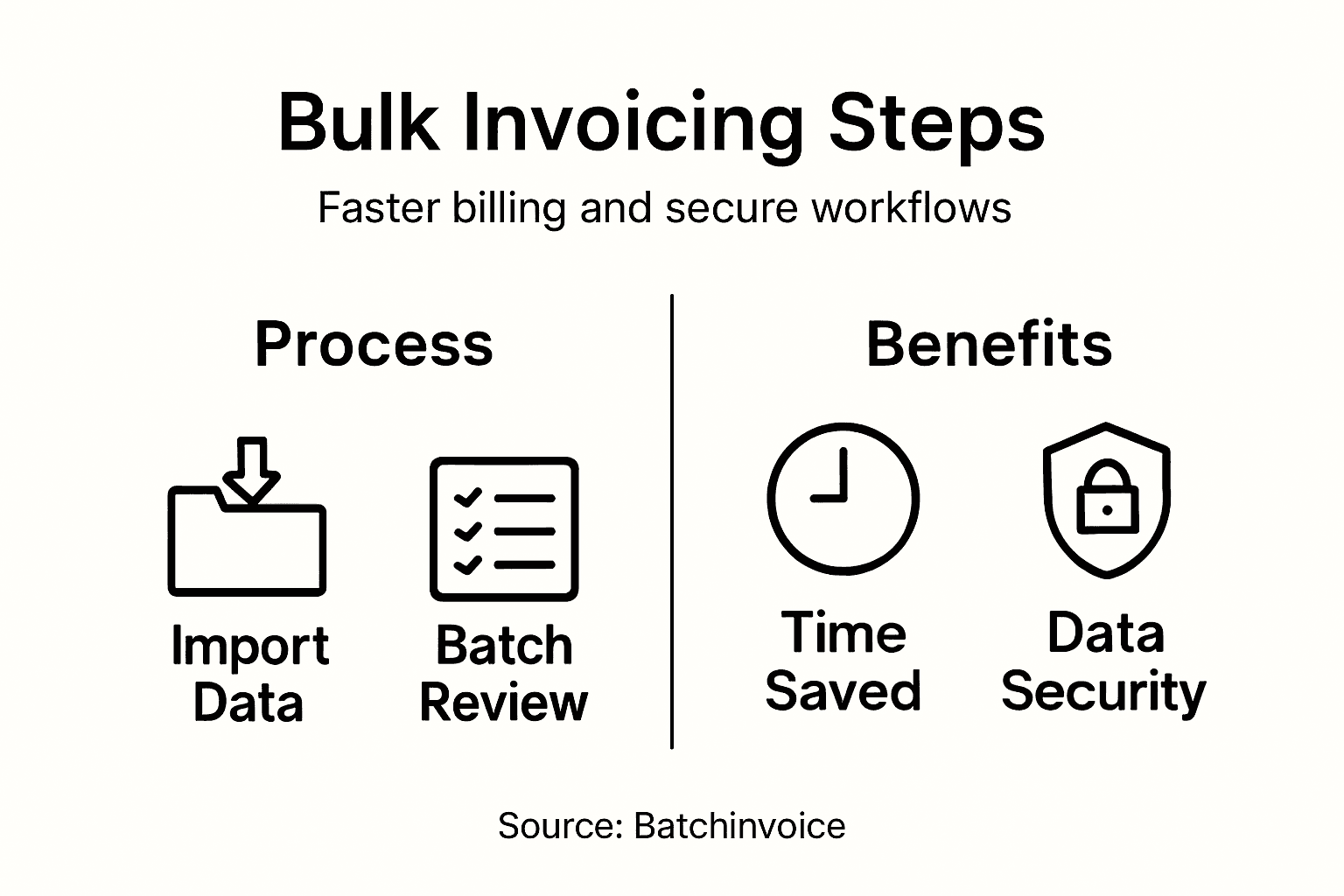
Accelerate Your Bulk Invoicing with BatchInvoice
Managing high volumes of invoices can be overwhelming and time-consuming. This article highlights common challenges like manual data entry, error-prone batch reviews, and the need for professional PDF invoices that meet industry standards. If you want to reduce billing errors and reclaim hours of administrative time, BatchInvoice is designed to streamline your entire bulk invoicing workflow. It automates repetitive tasks, supports easy data imports from spreadsheets or notes, and ensures secure integration with popular accounting platforms such as QuickBooks and Xero.
Explore proven strategies to simplify your financial processes in the Uncategorized Archives – BatchInvoice and see how BatchInvoice’s features can transform your billing efficiency.
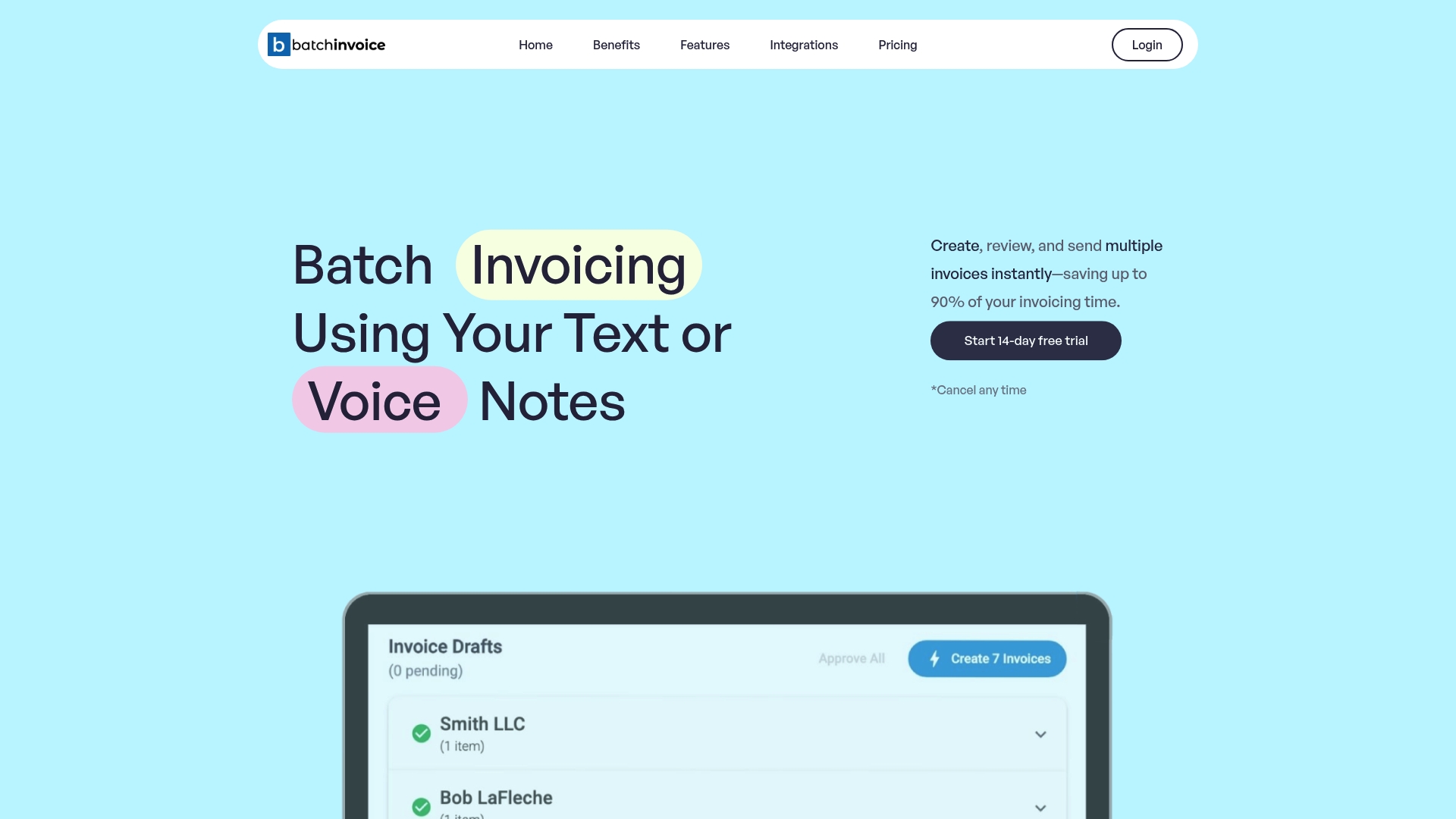
Ready to experience up to 90% faster invoice creation and professional batch processing for your business? Visit BatchInvoice.co now to start your free trial and discover how effortless bulk invoicing can be. Take control of your financial workflow and eliminate administrative overhead today.
Frequently Asked Questions
How can I set up BatchInvoice for bulk invoicing?
To set up BatchInvoice for bulk invoicing, create your account on the platform and gather your business information, client details, and pricing structures. Then, connect to your accounting platforms, import your client database, configure invoice templates, and establish automated billing rules to enhance efficiency.
What steps should I follow to import invoice data into BatchInvoice?
Begin by preparing your source documents, ensuring they have consistent columns for vital information like client names and invoice totals. Click the ‘Import’ button in the BatchInvoice dashboard, choose your file type, and follow the guided process to map your columns accurately for swift and precise data transfer.
How do I generate professional PDF invoices using BatchInvoice?
Generate professional PDF invoices by selecting the invoices you want to convert in the BatchInvoice dashboard. Choose your template, customize branding elements, and then review and confirm invoice details before generating batch PDF invoices to save time and ensure professionalism.
What are the key points to check during invoice batch verification?
During invoice batch verification, confirm client contact information, validate invoice calculations, and check line item accuracy. Utilize BatchInvoice’s verification tools to highlight discrepancies, ensuring you prevent billing mistakes and maintain your financial integrity.
How does integrating BatchInvoice with accounting platforms improve my workflow?
Integrating BatchInvoice with your accounting platforms automates data transfer, reducing manual data entry and minimizing errors. By setting up a secure connection, you can enable real-time synchronization of financial data, which can improve your overall workflow efficiency by up to 70%.